There are a lot
of different ways to use Twitter. Some users may never post anything on
Twitter, choosing instead to follow updates from other people. But for other
users, there might be a lot of value in sharing what's going on in your world
and joining the conversation. Twitter makes it easy to get started.
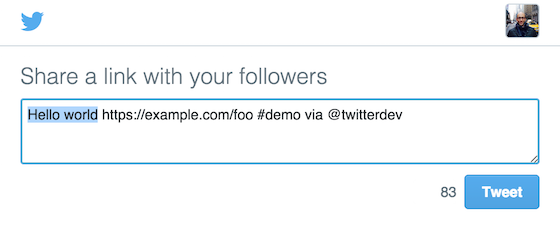
To post a tweet, you'll need to have your own Twitter account and be signed in. Now you do want to point out that in this example you're using the Twitter app foriPhone, but you should be able to follow the same basic steps to tweet from an Android device or from your web browser. Select the New Tweet button.
The Tweet box
will appear. From here, you can type whatever you want to post to Twitter. Twitter
is built for sharing things quickly, so every tweet is limited to just 140
characters; as you type the counter at the bottom will tell you how many
characters you have left. You'll see this actually go into negative numbers if
you use too many characters. You can usually find a way to cut down on the
number of characters in a tweet. However, if your post accidentally closes or you want to leave it, your post will be going to the draft section.

When you're ready, select Tweet. By default, your tweet will be shared publicly, along with anyone else who follows you on Twitter.
It will also appear at the top of your Twitter timeline. A tweet doesn't just have to be text. For example, you can include a photo with your tweet. You’ll start the same way by selecting the Tweet button and typing your post, then choose the camera icon, then select a photo or use your device's camera to take a new one.

When you're ready, select Tweet. And there we go. Another thing on Twitter is links to an article or video on a different website. To share a link, you can simply copy and paste it into your tweet. It's worth pointing out that Twitter will shorten the number of characters in a link automatically, so it doesn't really matter how long the URL to that page is.
Once you've posted a link, anyone can select it open that page. When you're browsing the web, you may see the option to share that page on Twitter. Just select the tweet button or twitter icon to quickly create a new tweet with a link to that page. You can add any other comments he wants, and that's it!

OK, just one more thing. if you want to share and tweet from someone else with the people that follow you, just select the Retweet button below any post. It'll then be shared with everyone who follows you on Twitter, even if they don't follow the account that originally posted it.
Now you're ready to start tweeting and join the conversation on Twitter!

No comments:
Post a Comment